



Running a small business means wearing a lot of hats — and ‘website security expert’ probably isn’t one you were planning to add to the list. But the reality is that your website is one of your most valuable business assets, and protecting it doesn’t require a technical background.
It requires a checklist.
This guide gives you a complete, actionable website security checklist designed specifically for small business owners. Work through it once, set up the ongoing steps, and you’ll have covered the vast majority of risks that lead to hacked websites, lost revenue, and damaged reputations.
Section 1: Foundations — Get These Right First
✅ SSL Certificate Installed and Active
Every website in 2025 must run on HTTPS. SSL certificates are free via Let’s Encrypt and are typically available through your hosting control panel with one-click installation. If your site still shows ‘Not Secure’ in browsers, fix this today.
Check: Visit your site and confirm the padlock icon appears in the browser bar. Verify there are no mixed content warnings (HTTP resources loading on an HTTPS page).
✅ Strong, Unique Passwords on Every Account
Every account connected to your website needs a strong, unique password: your CMS admin account, hosting control panel, FTP/SFTP, database, and domain registrar. Use a password manager (1Password, Bitwarden, or Dashlane are all excellent) to generate and store complex passwords.
Never reuse passwords across accounts. A leaked credential from one service can compromise every account that shares it.
✅ Two-Factor Authentication (2FA) Enabled
Enable 2FA on every account that supports it — especially your CMS admin login, hosting control panel, and domain registrar. Even if a password is compromised, 2FA prevents unauthorized access without the second verification step.
For WordPress: plugins like WP 2FA or Google Authenticator add 2FA to your admin login in minutes.
✅ Hosting on a Reputable Provider
Not all hosting is equal from a security perspective. Reputable providers maintain up-to-date server software, offer account isolation on shared hosting, provide regular backups, and have security monitoring in place at the infrastructure level. If your hosting is unusually cheap or has a poor support reputation, it may be worth upgrading.
Section 2: Your CMS and Software
✅ CMS Core Kept Updated
Whether you’re running WordPress, Joomla, Drupal, or another CMS — keeping the core software updated is non-negotiable. Most CMS updates include security patches for discovered vulnerabilities. Enable automatic minor updates and check for major updates weekly.
✅ All Plugins and Themes Updated
Plugin and theme vulnerabilities are the leading cause of WordPress hacks. Every plugin and theme you have installed — active or inactive — needs to be on its latest version. Enable automatic updates where possible and review manually at least weekly.
✅ Unused Plugins and Themes Deleted
Inactive plugins and themes are still scannable by hackers and still present security risks. If you’re not using it, delete it — not just deactivate. Go through your plugin list and ruthlessly remove anything that isn’t actively serving a purpose on your site.
✅ Only Trusted, Actively Maintained Plugins
Before installing any plugin, check: When was it last updated? How many active installs does it have? Does it have recent reviews? Is the developer responsive in the support forum? Avoid plugins that haven’t been updated in over 12 months or have unresolved security reports.
Section 3: Access Control
✅ Default Admin Username Changed
If your WordPress username is ‘admin’, change it immediately. This is the first credential attackers try. Create a new administrator account with a unique username, assign all content to it, then delete the default admin account.
✅ User Accounts Audited
Review every user account on your website. Remove accounts for people who no longer need access. Ensure every user has the minimum permissions required for their role — editors don’t need administrator access. Check for any accounts you don’t recognise — unknown admin accounts are a common sign of compromise.
✅ Login Attempts Limited
By default, most CMS platforms allow unlimited login attempts — making brute force attacks trivial. Install a plugin or use your security platform to limit failed login attempts and lock out IP addresses after a threshold is reached.
✅ Admin Login URL Customised (WordPress)
The default WordPress login URL (yoursite.com/wp-admin) is known to every bot on the internet. Moving it to a custom URL dramatically reduces automated attack volume. Plugins like WPS Hide Login handle this in seconds.
Section 4: Backups
✅ Automated Daily Backups Configured
Backups are your last line of defence. If your site is severely compromised and can’t be cleaned, a clean backup means you can restore rather than rebuild from scratch. Configure automated daily backups — your hosting provider may offer this, or use a plugin like UpdraftPlus for WordPress.
✅ Backups Stored Offsite
A backup stored only on your hosting server is at risk if your hosting account is compromised or suspended. Store backups in a separate location: Google Drive, Dropbox, Amazon S3, or a dedicated backup service. The backup and the live site should never be in the same place.
✅ Backup Restoration Tested
A backup you’ve never tested is a backup you can’t trust. At least once, run through the restoration process to confirm it works and you know the steps. When you need it in a crisis, it’s not the time to figure it out for the first time.
Section 5: Active Security — Prevention and Monitoring
✅ Web Application Firewall (WAF) in Place
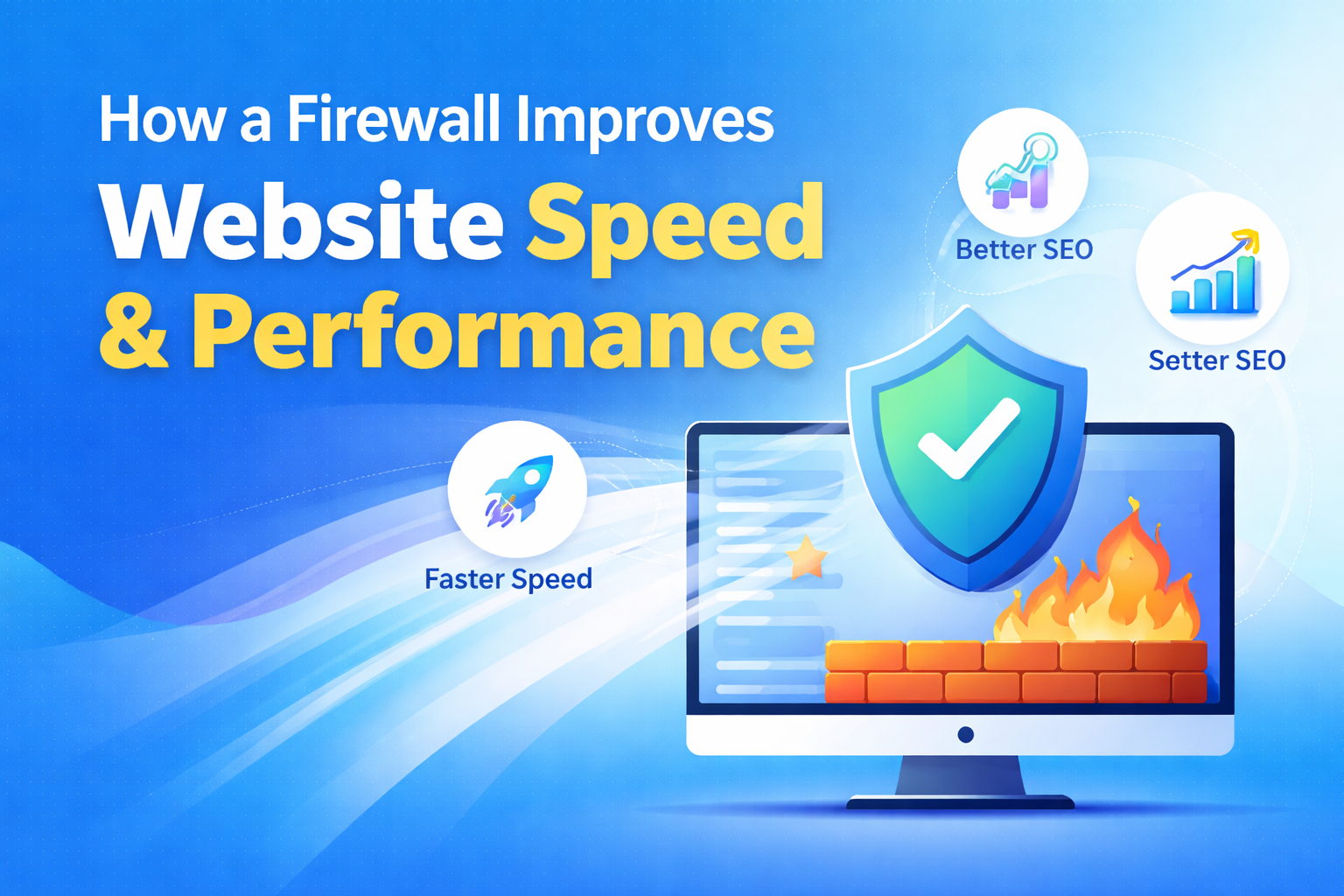
A WAF sits between your website and the internet, filtering malicious traffic before it reaches your server. It blocks SQL injection, XSS attacks, brute force attempts, DDoS floods, and exploit attempts against known CMS vulnerabilities. For any business website, a WAF is essential — not optional.
✅ Malware Scanning Running Continuously
Continuous malware scanning monitors your website files and database for infections, backdoors, and suspicious changes. It should run automatically and alert you immediately when anything concerning is detected — not wait for you to remember to check.
✅ Blacklist Monitoring Active
Your domain can be blacklisted by Google, McAfee, Norton, and other security databases without you knowing. Blacklist monitoring watches all major databases and alerts you the moment your site is flagged — so you can act before your traffic collapses.
✅ Professional Malware Removal Plan in Place
Know who you’ll call if your site gets hacked. Having a security provider on standby with guaranteed malware removal means you can act fast — not spend precious hours searching for help while your site is down and customers are affected.
Sucuri‘s platform covers the entire active security section of this checklist in a single subscription — WAF, malware scanning, blacklist monitoring, and guaranteed malware removal with unlimited re-cleans. It’s the most efficient way to check off all of Section 5 at once.
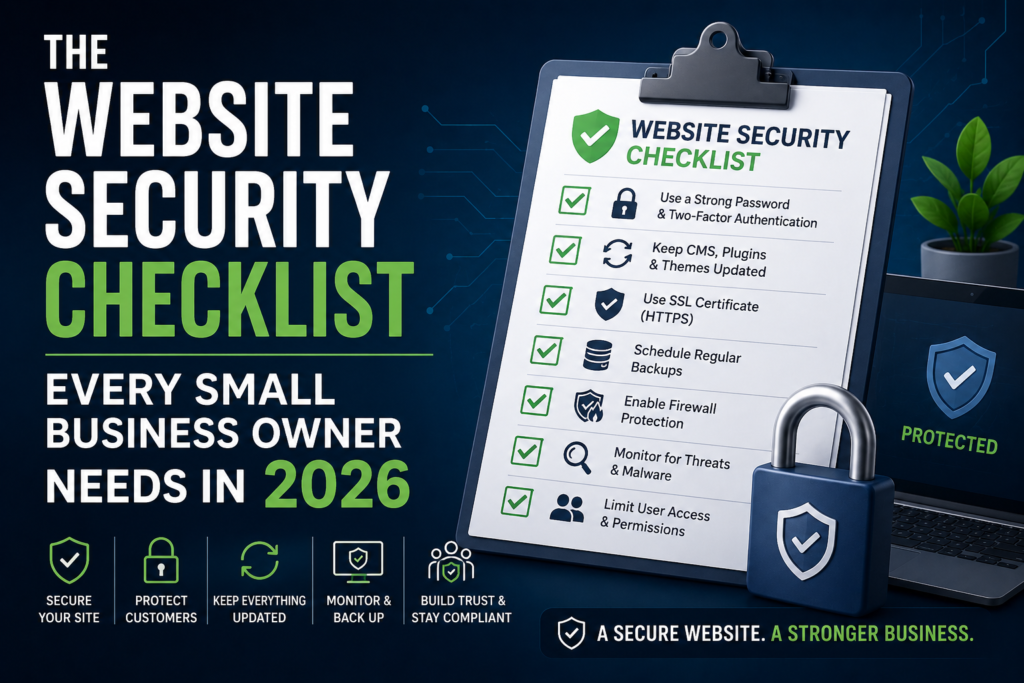
Your Complete Checklist at a Glance
- SSL certificate installed and active
- Strong, unique passwords on all accounts
- Two-factor authentication enabled
- Reputable hosting provider
- CMS core kept updated
- All plugins and themes updated
- Unused plugins and themes deleted
- Only trusted, maintained plugins installed
- Default admin username changed
- User accounts audited and trimmed
- Login attempts limited
- Admin login URL customised
- Automated daily backups configured
- Backups stored offsite
- Backup restoration tested
- Web application firewall active
- Continuous malware scanning running
- Blacklist monitoring active
- Professional malware removal plan in place
📋 Work through this checklist and you’ll have stronger security than the vast majority of small business websites. Let Sucuri handle the active monitoring and protection layer — so you can focus on running your business, not watching your website.
Website security isn’t a one-time task. But with the right systems in place, it doesn’t have to be a constant worry either.